Posted by SolidShops on September 09, 2011 at 03:19 PM
Sometimes, your clients will ask you to print out only a piece of the product descriptions they have entered. A typical situation is a front page which only shows a short introduction text about a product and a detailed product page which contains the full product description.
To make it easy for you and your client to accomplish this, we have implemented the following solution.
The client enters a product description as usual and clicks on the “add more break” button in the editor. This will insert a break that defines the end of the excerpt. That’s it.
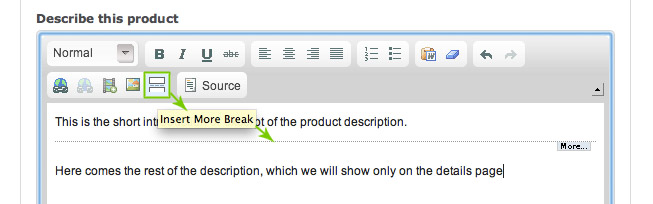
The template designer now prints the product or page description as usual, but by using the excerpt filter:
{{ product.description|excerpt }}
This will only print the excerpt of the description (the part before the ‘more break’) instead of the full description, nice and easy. If you have any questions or remarks, please let us know in the comments section below.
Posted by SolidShops on July 07, 2011 at 09:30 AM
Writing great CSS is an art in itself. Web designers are always pushing the limits of our favorite markup language. There have been a few cool initiatives like the LESS css preprocessor to make the use of variables possible inside CSS.
With SolidShops however, you don’t need the overhead of additional libraries, just use our simple templating language to assign variables or even write if/else structures inside your CSS files.
Here’s a small example to give you an idea of how you can make writing CSS easier by using variables inside your stylesheets:
{% set roundness = "5px" %}
.roundit {

-moz-border-radius: {{ roundness }};

-webkit-border-radius: {{ roundness }};

border-radius: {{ roundness }};

}
If you want to change the roundness of your elements with class .roundit, just adjust the variable on top once instead of manually updating every single occurrence of the border-radius property.
I’m sure that you designers and developers out there have many more creative ideas on how to use this for your own benefit. If you got some ideas to share, post them in the comments below and we’ll add them to this post!
Posted by SolidShops on June 16, 2011 at 10:09 PM



Let's get social shall we?
We'd love to know what you think. Join the conversation about your hosted e-commerce solution.